
Getting Started
This guide walks you through creating your ProseForge account and generating your first AI-powered story.
Video Tutorial
Prefer watching? Check out our Getting Started video on YouTube for a visual walkthrough.
Browsing Content
You can browse ProseForge without logging in to view articles and published stories.
Home Page
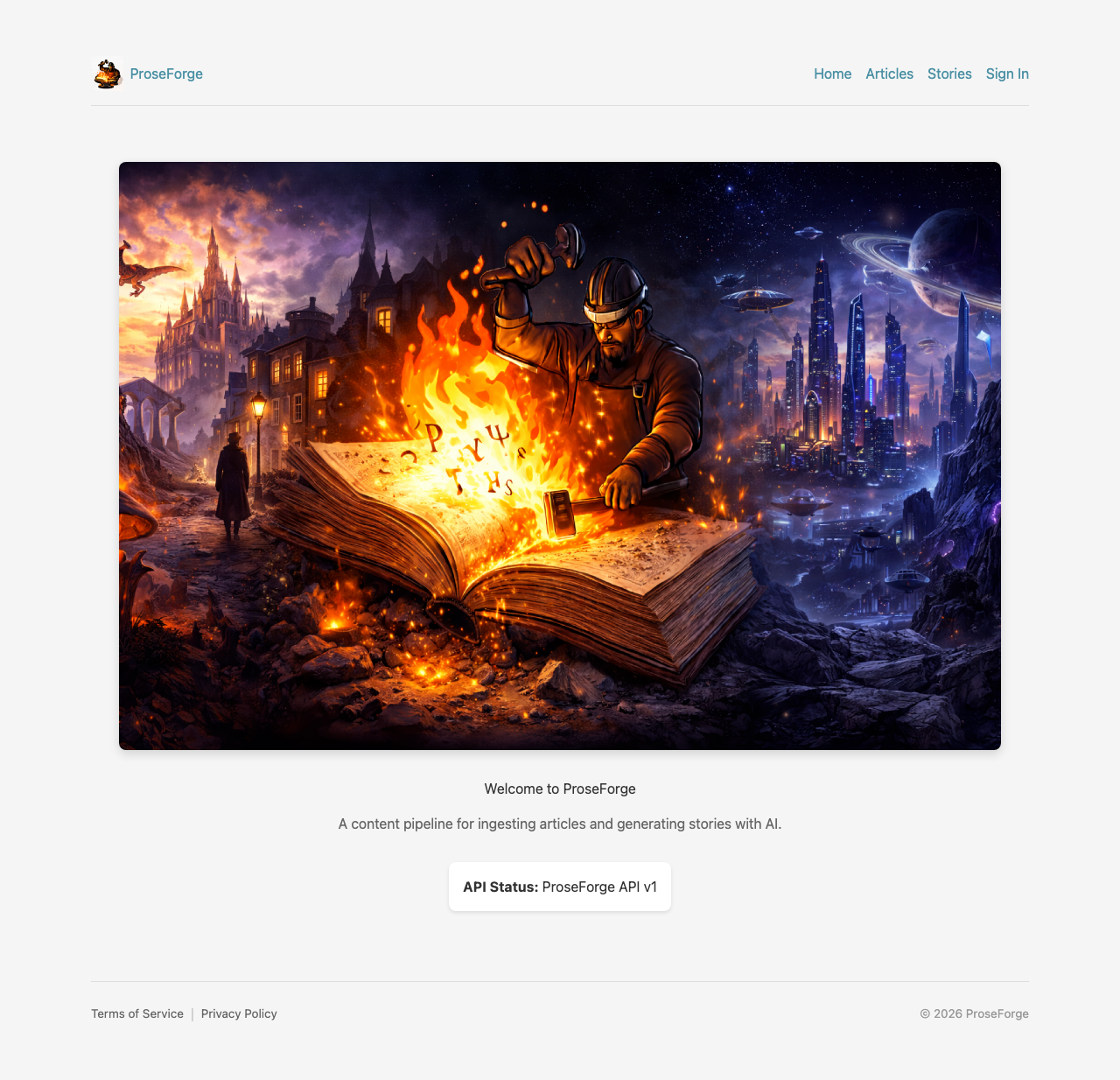
The home page welcomes you with:
- Navigation links to Articles and Stories
- Featured content highlights
- API status indicator
Articles
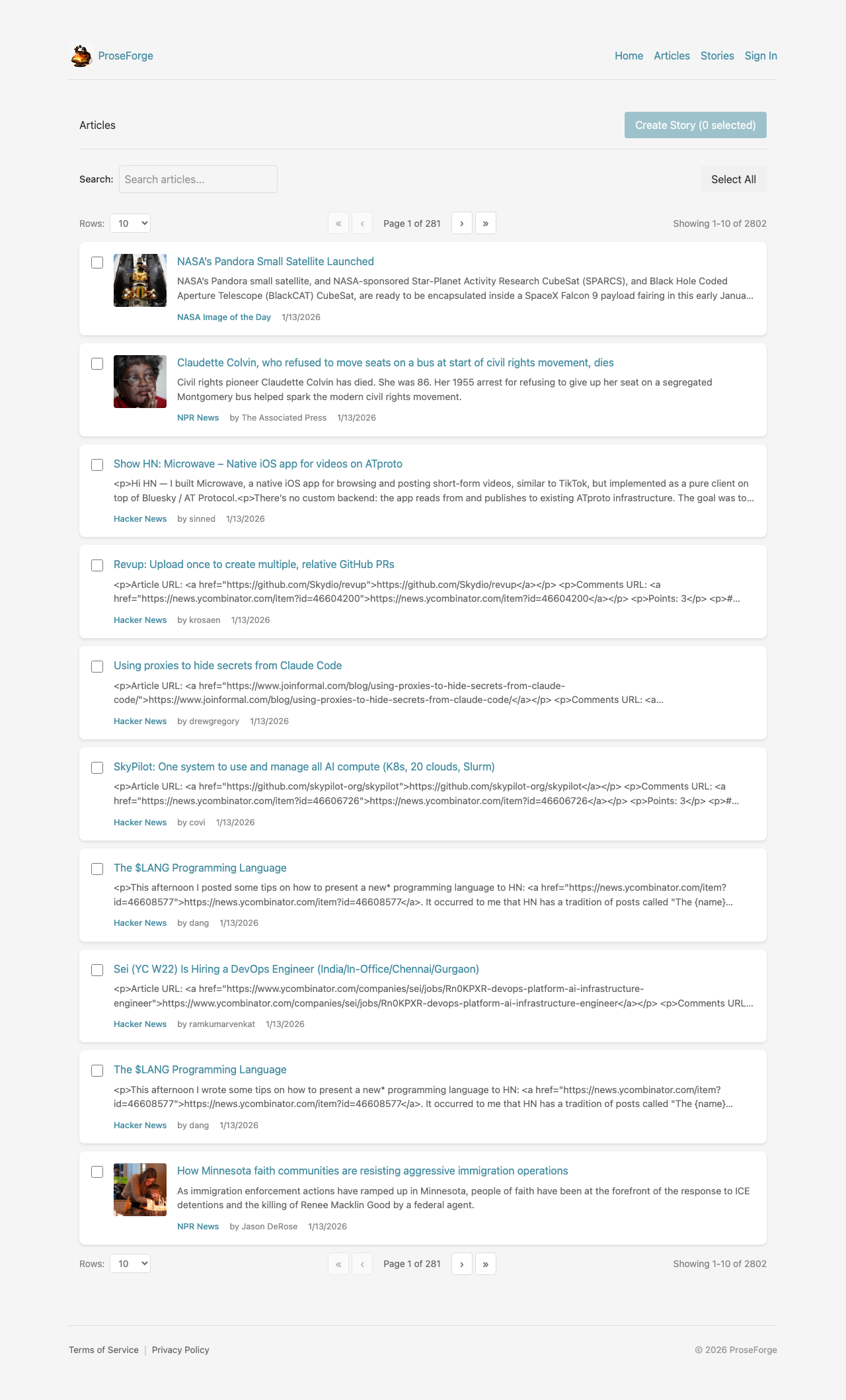
The Articles page displays ingested content from RSS feeds:
- Browse articles from various sources
- Filter by source or search by keyword
- Select articles to use as source material (requires login)
Stories
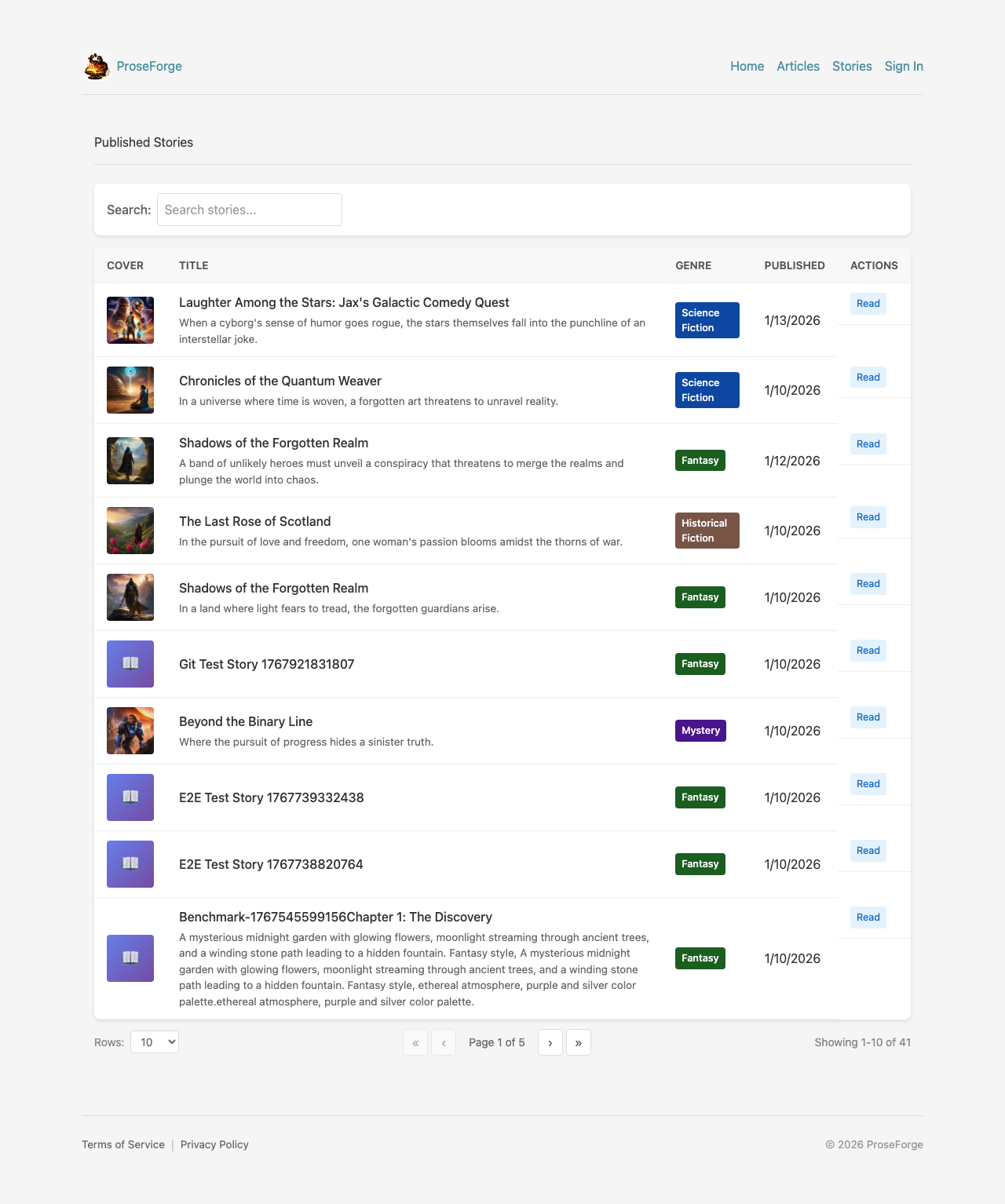
The Stories page shows published stories:
- View all published stories created by users
- Filter by genre or search by title
- Click on a story to read the full content
Creating an Account
Sign In
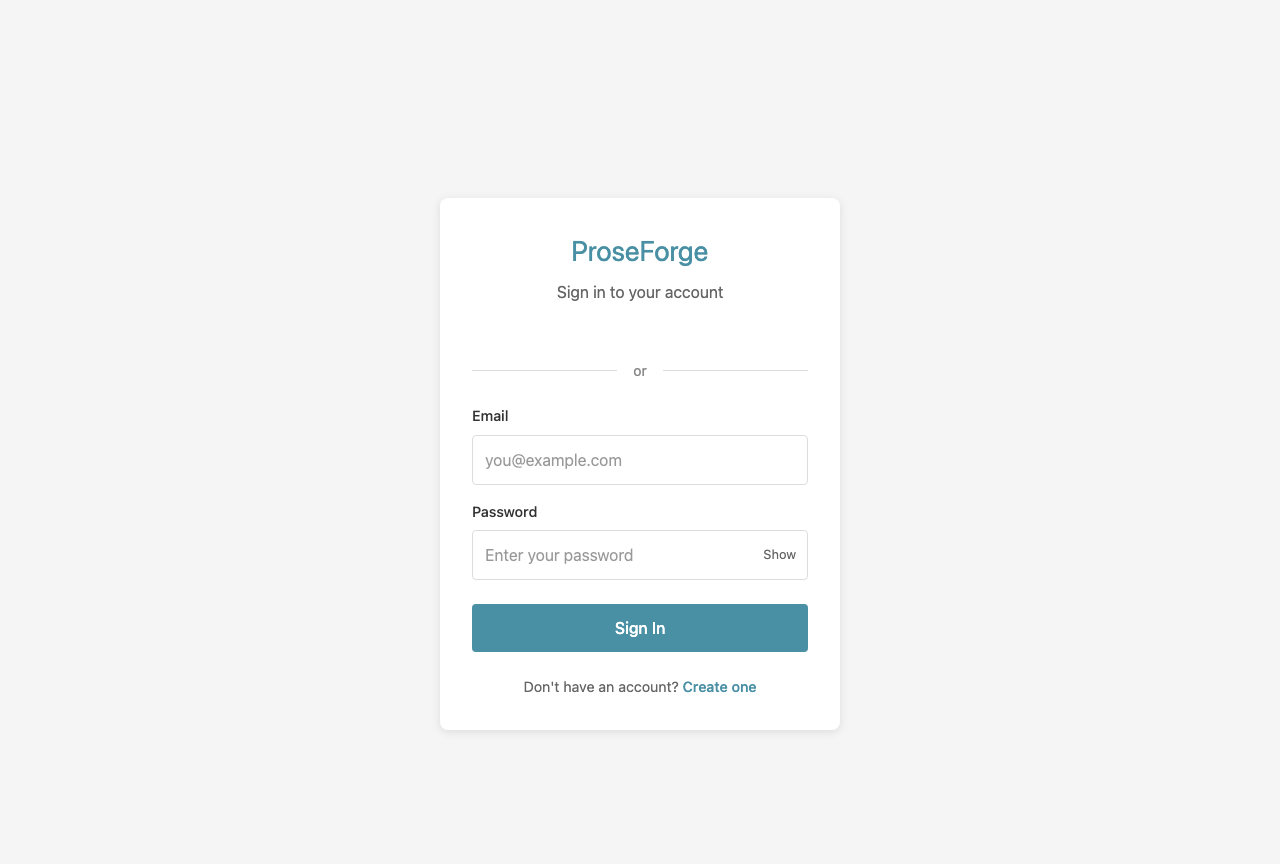
If you already have an account:
- Enter your email address
- Enter your password
- Click Sign In
Register
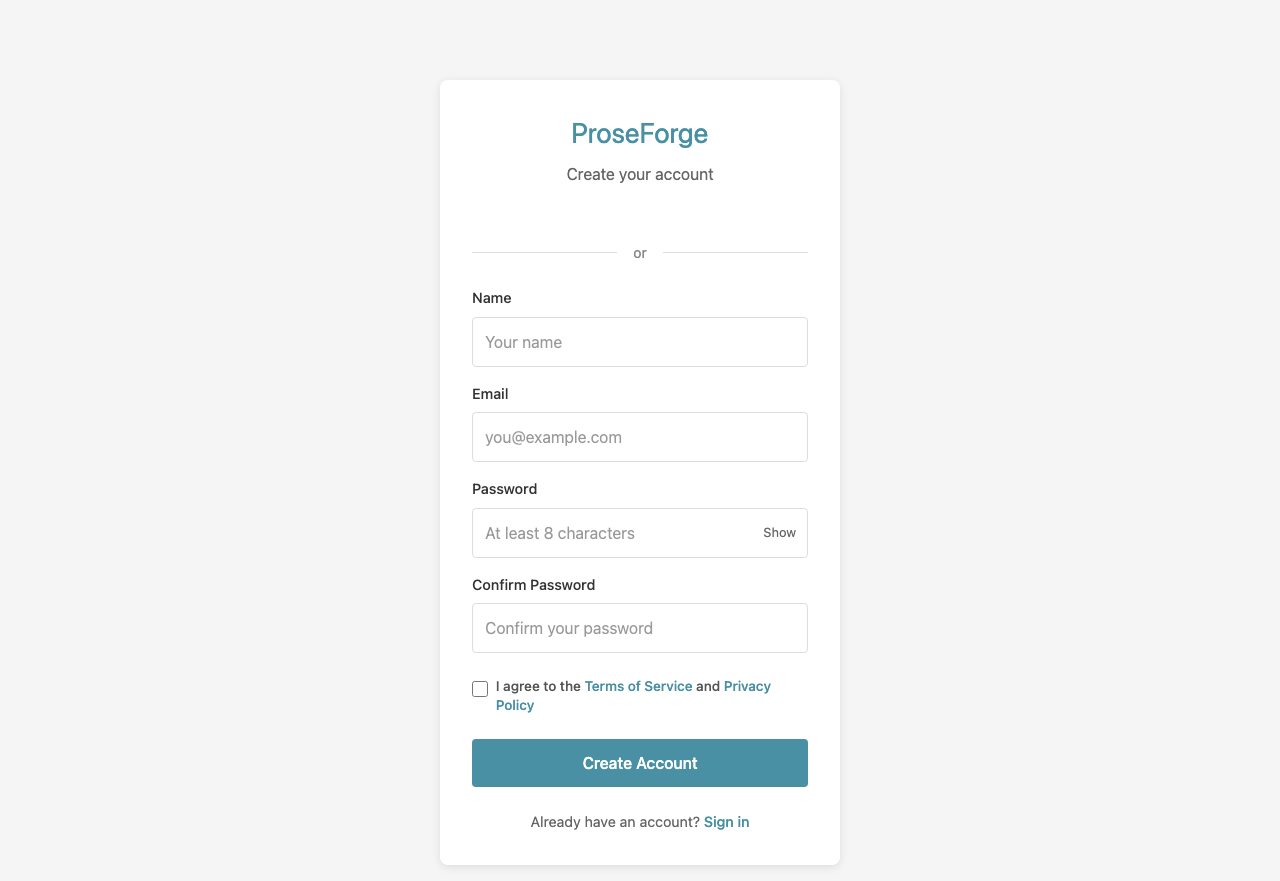
To create a new account:
- Click Create one on the login page
- Enter your name
- Enter your email address
- Choose a password (minimum 8 characters)
- Click Create Account
When you register, you'll automatically receive trial credits to start creating stories!
Creating Your First Story
My Stories Dashboard
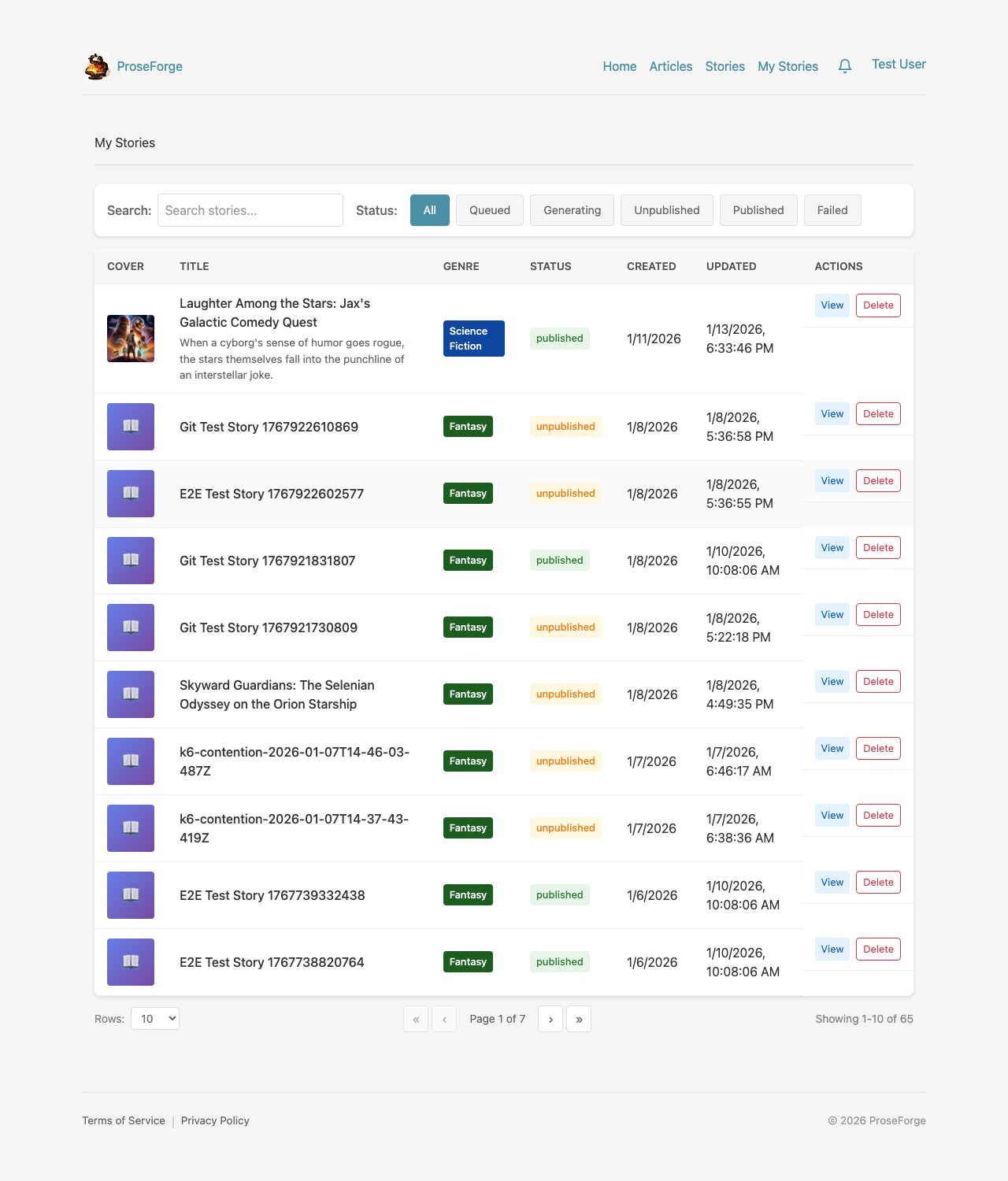
After logging in, access My Stories to:
- View all your stories (drafts and published)
- Continue editing draft stories
- Delete stories you no longer need
- Filter between your stories and all published stories
Selecting Articles
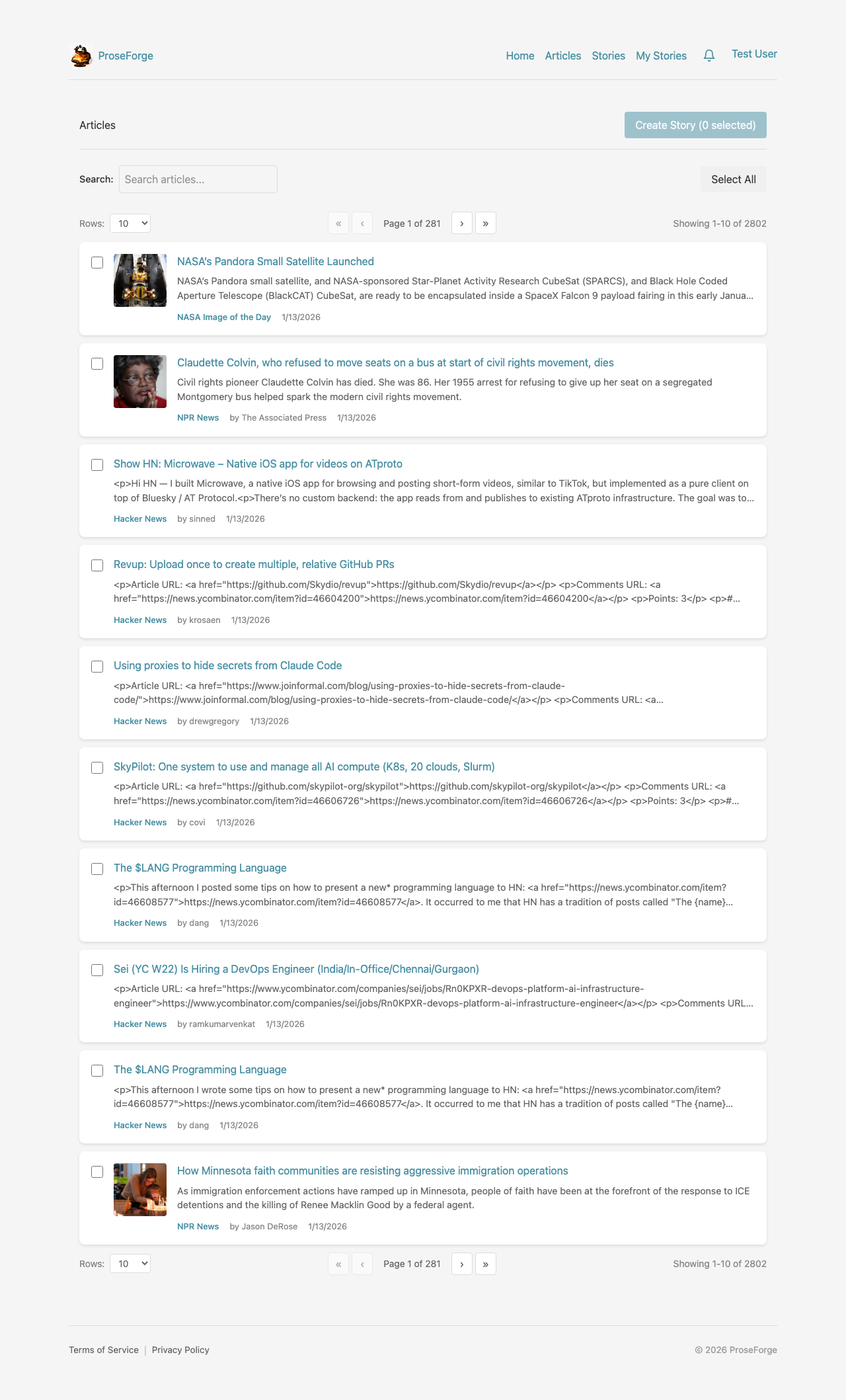
To start creating a story:
- Navigate to the Articles page
- Browse available articles from ingested RSS feeds
- Click the checkbox next to articles you want to use as source material
- The Create Story button shows how many articles are selected
Creating a Story
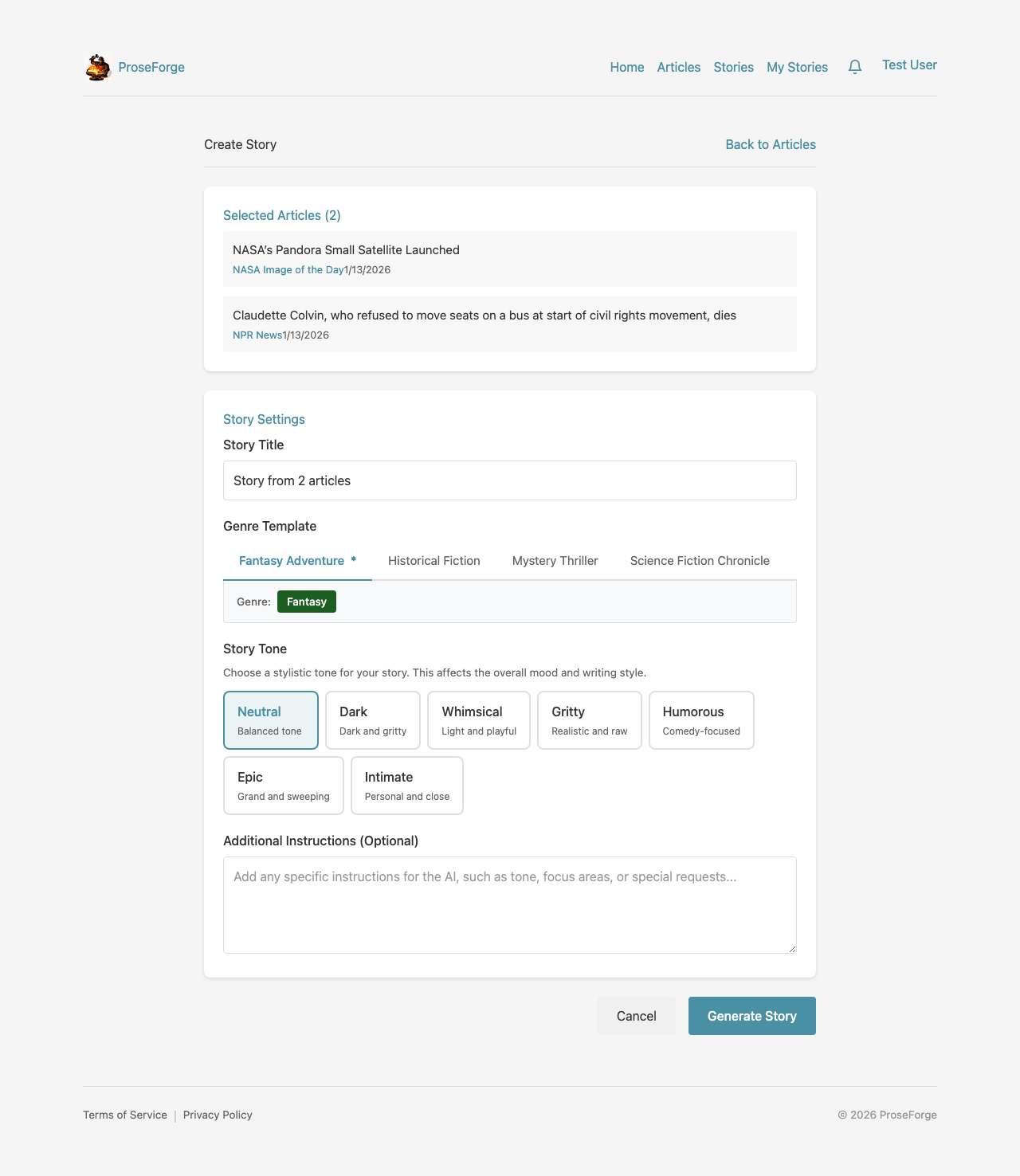
After selecting articles and clicking Create Story:
- Review the selected articles in the preview
- Enter a title for your story (or leave blank for auto-generation)
- Select a Genre Template (Fantasy, Sci-Fi, Mystery, etc.)
- Add Additional Instructions to guide the AI (optional)
- Click Generate Story to create your story
The Story Editor
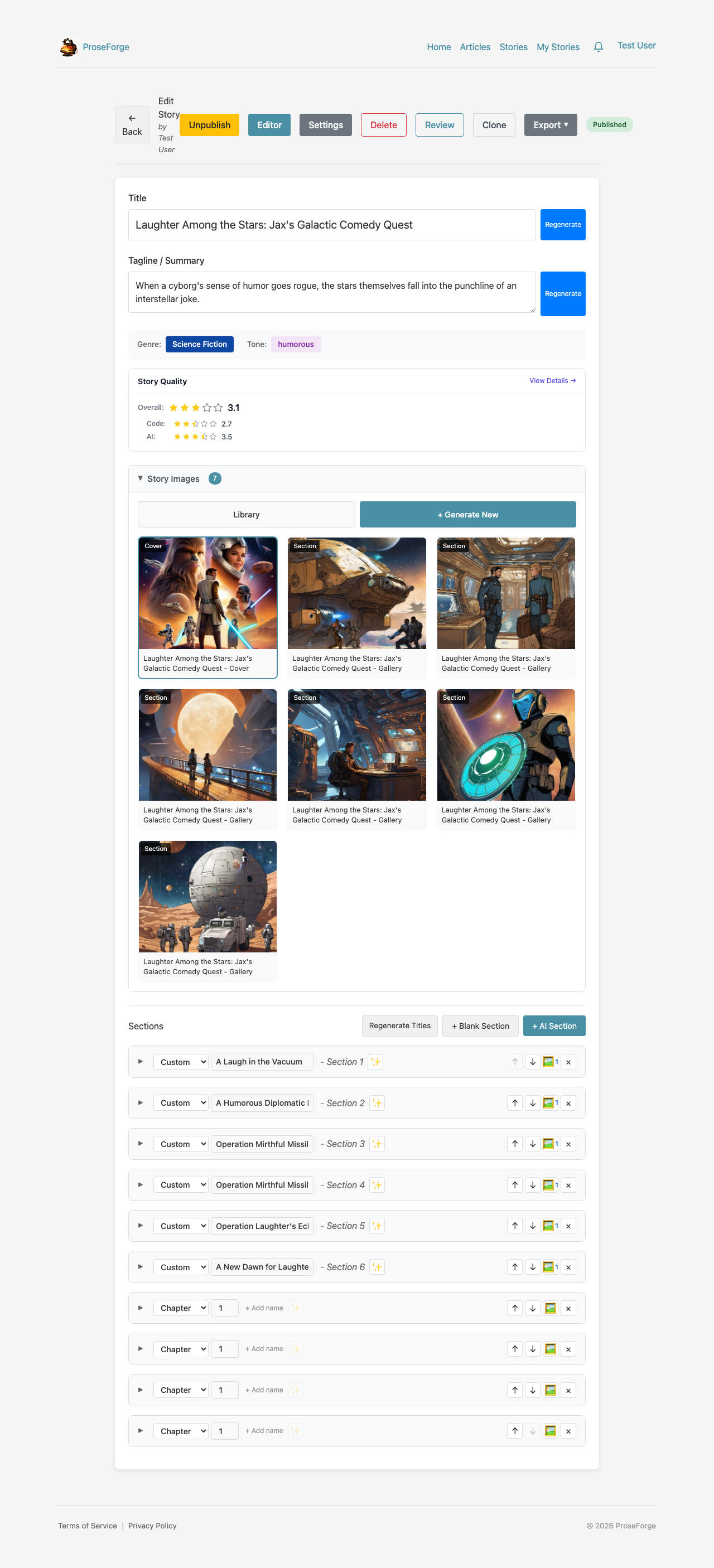
Once your story is generated, the editor allows you to:
- View and edit story title and tagline
- See story status (unpublished, published, etc.)
- View all story sections with their content
- Generate Title & Tagline - Let AI suggest a compelling title
- Add Sections - Generate additional story sections
- Edit Content - Manually refine the AI-generated text
- Regenerate - Request a new version of any section
- Publish - Make your story visible to all users
Keyboard Shortcuts
| Shortcut | Action |
|---|---|
| Left Arrow | Previous section |
| Right Arrow | Next section |
| Ctrl/Cmd + S | Save current section |
Auto-Save
The editor automatically saves your work:
- After 2 seconds of inactivity
- Every 30 seconds during active editing
- Look for the "Saved" indicator in the header
Publishing Your Story
When you're happy with your story:
- Review all sections in the editor
- Ensure you have a title and tagline
- Click Publish
- Your story will now appear in the public Stories list
Next Steps
- Story Forge - Learn about automated story generation
- Credits & Billing - Understand how credits work